
Mastering Spotify’s Built-In Graphic Equalizer
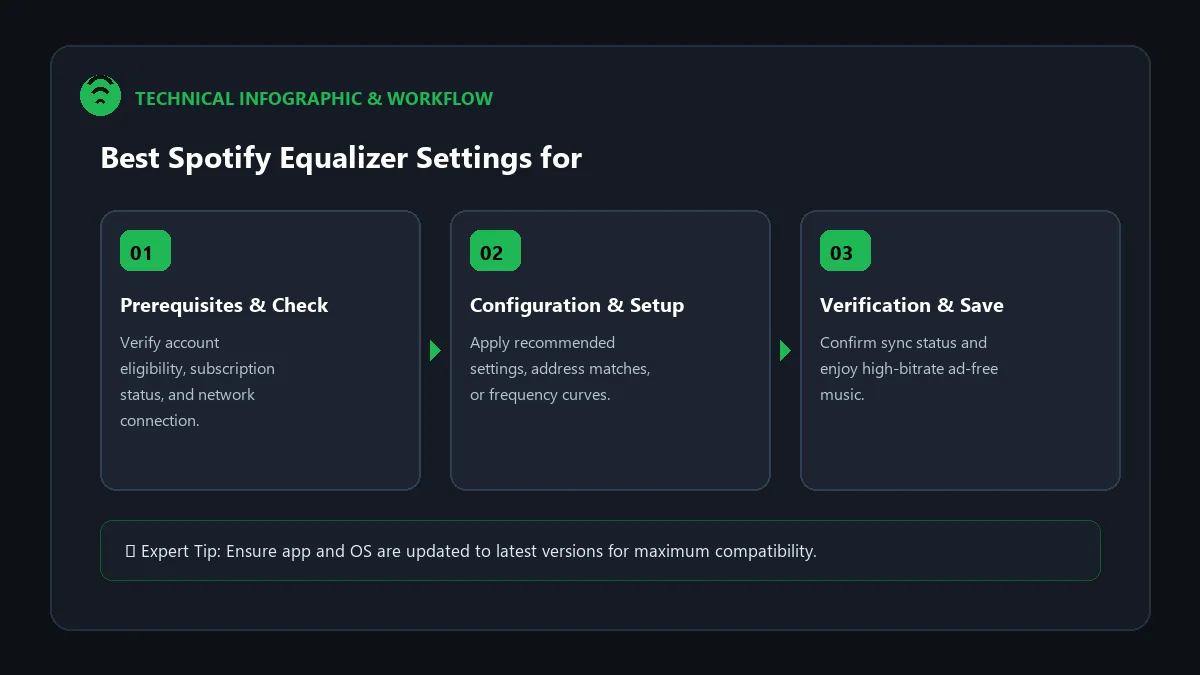
By default, Spotify streams audio using a flat frequency response curve. While flat audio aims to represent the original studio mix accurately, consumer headphones, car stereos, and earbuds often benefit dramatically from tailored equalization. Adjusting Spotify’s multi-band EQ can transform muddy audio into crisp, articulate vocals paired with deep, punchy low-end sub-bass.
This technical guide reveals the best spotify equalizer settings for clear vocals and heavy bass, providing exact frequency adjustments, decibel (dB) offsets, and headphone optimization presets.
Understanding Spotify’s 6-Band Frequency Spectrum
Spotify’s graphic equalizer divides sound across six fundamental frequency bands:
- 60 Hz (Sub-Bass): The deepest rumble and physical vibration in electronic, hip-hop, and cinematic music.
- 150 Hz (Mid-Bass): Kick drums, bass guitars, and foundational low-end warmth.
- 400 Hz (Lower Midrange): Body of male vocals, acoustic guitars, and snare drum thickness.
- 1 kHz (Center Midrange): Lead vocal presence, piano fundamental notes, and instrument clarity.
- 2.4 kHz (Upper Midrange): Vocal articulation, crisp speech intelligibility, and attack transients.
- 15 kHz (Treble / Air): Cymbal shimmer, acoustic string sparkle, and high-frequency spatial openness.
The Ultimate ‘Vocal Clarity + Deep Bass’ EQ Curve
To achieve clean, non-muffled vocal articulation alongside thumping, distortion-free low end, set your 6-band sliders to the following dB offsets (The Modified ‘V-Shape’ Curve):
| Frequency Band | Recommended Gain Offset | Acoustic Purpose |
|---|---|---|
| 60 Hz | +5 dB to +6 dB | Adds deep sub-bass rumble without distorting kick drums |
| 150 Hz | +3 dB to +4 dB | Provides punchy punch and rich bassline fullness |
| 400 Hz | -1 dB to 0 dB | Reduces ‘boxy’ nasal resonance and cleans vocal mud |
| 1 kHz | +2 dB | Pushes lead vocalists forward in the stereo soundstage |
| 2.4 kHz | +4 dB | Maximizes lyrical crispness and consonant definition |
| 15 kHz | +3 dB | Adds airy shimmer and expansive acoustic separation |
How to Enable the Equalizer on iOS & Android
- Open Spotify on your mobile device.
- Tap your Profile Picture in the top-left corner -> Settings and privacy.
- Select Playback.
- Tap on Equalizer and toggle it ON.
- Drag the individual frequency dots to match the table above!
Crucial Audio Setting: Disable Volume Normalization for Max Dynamic Range
Audiophile Pro Tip: In Spotify Playback settings, turn Enable Audio Normalization to OFF. Volume normalization compresses audio dynamics to make all songs equal loudness, which crushes bass transients and squashes vocal dynamics.
Frequently Asked Questions
Is the Spotify equalizer available on Windows and Mac?
No. The built-in 6-band graphic equalizer is exclusive to the iOS and Android mobile apps. On PC/Mac, you can use system-level tools like Equalizer APO.
Does boosting bass drain phone battery faster?
EQ processing uses minimal DSP power, but playing audio at louder output volumes to drive boosted bass frequencies can slightly increase battery consumption on connected headphones.
Which audio quality setting should I use with EQ?
Always set Streaming quality and Download quality to Very High (320 kbps) to provide the cleanest uncompressed audio signal for the equalizer to sculpt.