
Virtual Listening Parties with Spotify Group Sessions
Listening to music with friends is no longer restricted to being in the same room or sharing a pair of wired earbuds. With Spotify Remote Group Sessions, Spotify Premium subscribers can host synchronized virtual listening parties with up to 32 participants simultaneously, no matter where they are located across the globe.
This guide explains how to start spotify remote group session with friends, manage real-time queue collaboration, resolve latency desync issues, and host seamless long-distance listening sessions.
Requirements for Hosting a Remote Group Session
- Spotify Premium Required: All participants (both the host and joining guests) must have an active Spotify Premium subscription (Individual, Student, Duo, or Family).
- Supported Devices: Available on iOS, Android, and Desktop (via Spotify Connect).
- Participant Limit: Up to 32 listeners can join a single synchronized session.
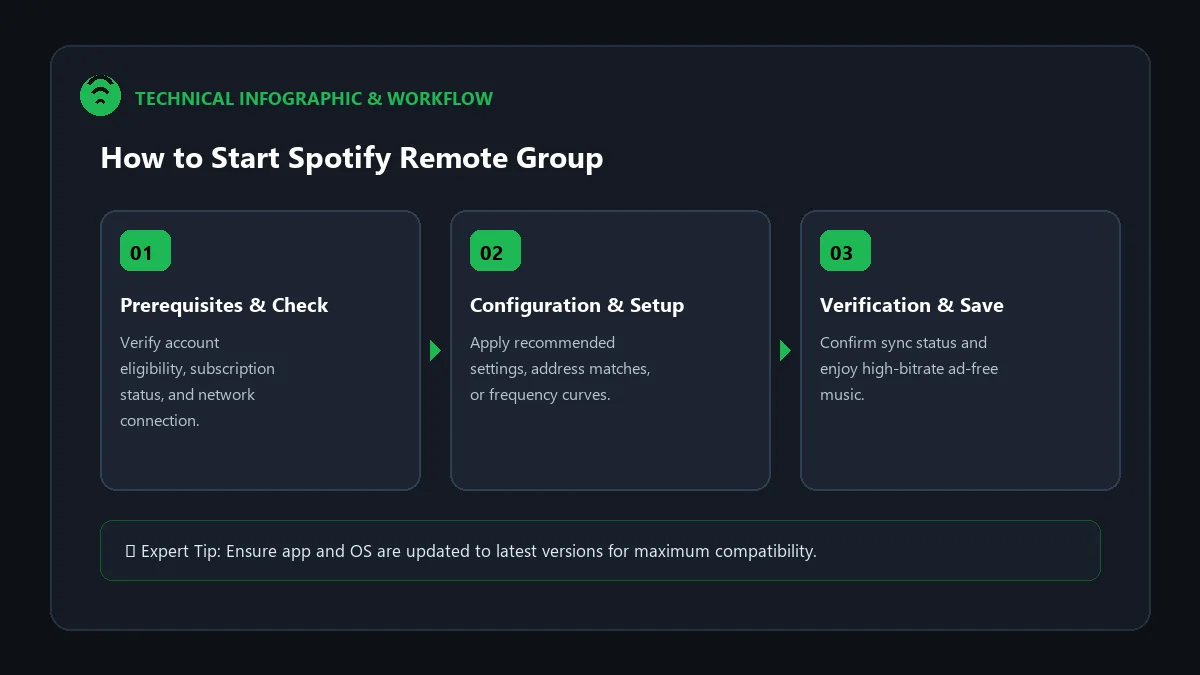
Step-by-Step: How to Host a Remote Group Session
- Start Playing Music: Open Spotify and begin playing any track, album, or playlist.
- Tap the Spotify Connect Icon: In the bottom-left corner of the Now Playing screen, tap the Device Picker / Connect Icon (speaker and screen icon).
- Start Group Session: Under ‘Start a Group Session’, tap Start Session.
- Invite Friends:
- Tap Invite friends.
- Choose Copy link or share directly via messaging apps (WhatsApp, Discord, Messenger, SMS).
- Collaborate in Real Time: Once friends click the invite link, their Spotify app connects. When any member presses play, pause, skips a track, or adds a song to the queue, playback synchronizes instantly on everyone’s speakers!
Group Session Host Controls Matrix
| Session Mode | Host Permissions | Participant Permissions |
|---|---|---|
| Full Collaborative Mode | Can pause, skip, add tracks, end session | Can pause, skip, and add songs to queue |
| Host-Only Controls Mode | Exclusive control of pause, play, and skips | Listen-only (Can suggest queue additions) |
How to End or Leave a Group Session
To conclude a listening party:
- As the Host: Tap the Device Picker icon -> select End Session. Playback uncouples for all listeners immediately.
- As a Guest: Tap the Device Picker icon -> select Leave Session to disconnect your personal audio feed.
Frequently Asked Questions
Can Spotify Free users join a Remote Group Session?
No. Remote Group Sessions require an active Spotify Premium subscription for all participating listeners.
Does everyone hear the exact same millisecond of audio?
Yes. Spotify utilizes real-time network time synchronization (NTP) to align audio buffers across mobile devices within milliseconds.
Can we use Discord or FaceTime while in a Group Session?
Yes. Spotify Group Session operates purely on audio playback, allowing you to voice chat or video call on Discord, Zoom, or FaceTime simultaneously.