
What is a Multi-User Spotify Blend?
Spotify Blend is one of the most innovative social listening features in digital streaming. While initially launched as a 2-person shared playlist, Spotify expanded Blend to support groups of up to 10 friends or family members. The algorithm automatically combines everyone’s favorite tracks, updates daily, and computes an interactive ‘Taste Match Score’ with custom story data.
In this guide, we walk through how to make spotify blend playlist with multiple friends, invite group members, analyze taste match metrics, and manage group permissions.
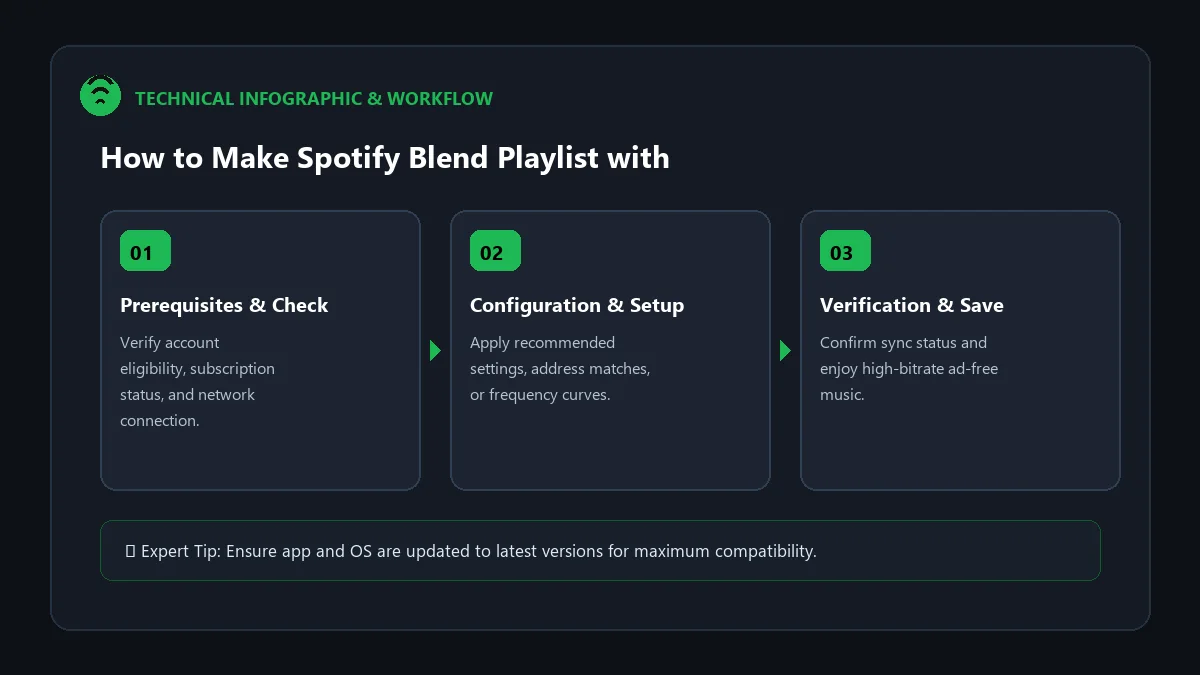
Step-by-Step: Creating a 10-Person Spotify Blend
- Open Spotify Mobile App: Blend creation is available natively on iOS and Android.
- Navigate to Search: Tap the Search tab at the bottom of the screen.
- Find the Made For You Hub: Type ‘Blend’ into search, or scroll down to the Made For You genre card.
- Tap ‘Create a Blend’: Tap the plus icon labeled Create a Blend.
- Send the Invite Link:
- Tap Invite to generate a shareable link.
- Share the link across your group chat (iMessage, WhatsApp, Telegram, Discord).
- Watch the Algorithm Generate: As each friend accepts the invite, Spotify seamlessly updates the playlist, dynamically adding their top tracks and recalculating the group Taste Match Score!
Spotify Blend Feature Breakdown
| Blend Specification | Capability Limit | User Impact |
|---|---|---|
| Maximum Participants | Up to 10 Users | Perfect for road trips, parties, and friend groups |
| Update Frequency | Daily Automated Refresh | Always reflects recent listening habits |
| Free Tier Support | 100% Supported | Free and Premium users can blend together |
| Taste Match Stories | Interactive Data Cards | Shows shared favorite artists and compatibility % |
How to View Group Taste Match Stories
To view your group’s musical compatibility statistics:
- Open your active group Blend playlist.
- Tap the animated Story / Taste Match Icon at the top of the screen.
- Swipe through cards showing which artists you all share in common, who brings the most niche music, and overall group compatibility percentages.
Frequently Asked Questions
Can Spotify Free users join a Blend with Premium users?
Yes. Blend is completely free and accessible to all registered Spotify users regardless of subscription tier.
How do I leave or delete a Spotify Blend?
Open the Blend playlist, tap the three dots (…), and select ‘Leave Blend’. If you are the creator, leaving will disband the group link.
Why is my Blend not updating daily?
Blends require active streaming data. If members stop listening to music on Spotify, the playlist will remain static until new listening data is registered.