
Why Migrate Playlists Between Spotify Profiles?
Whether you created a fresh Spotify account with a new email address, separated from a shared family plan, or want to clone a friend’s curated library, moving playlists between accounts is a common requirement. While commercial third-party migration tools charge recurring monthly fees, Spotify’s native platform lets you copy entire libraries 100% free.
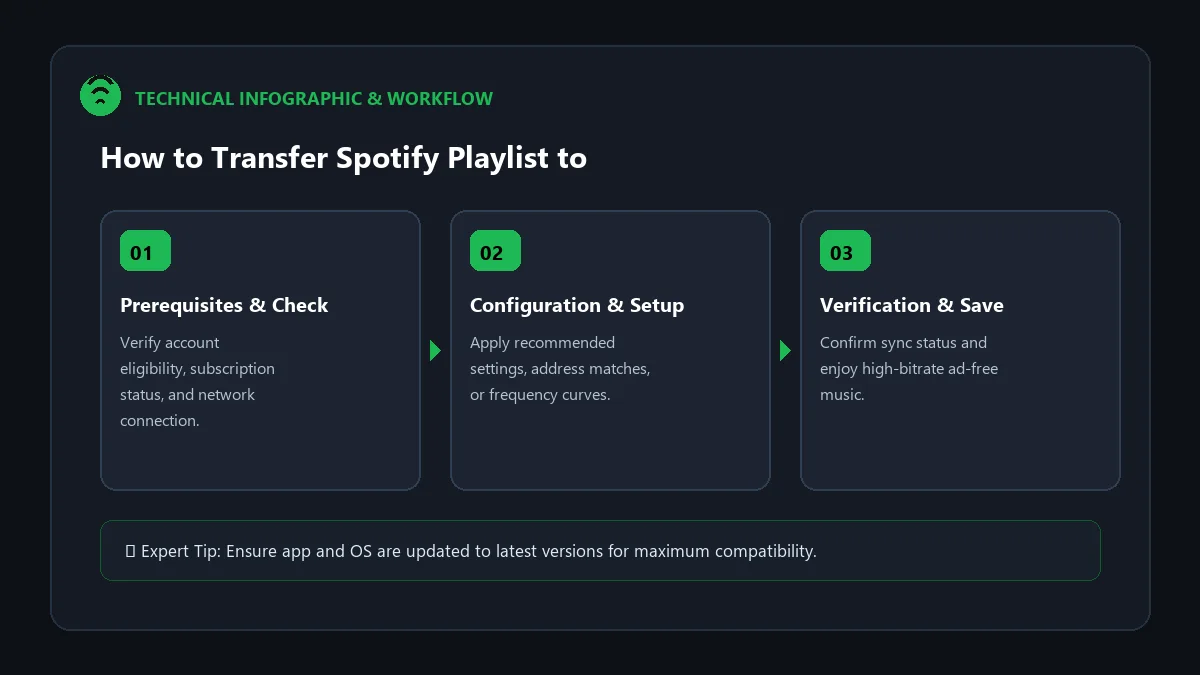
This tutorial explains how to transfer spotify playlist to another account without premium using desktop drag-and-drop cloning and public profile sharing.
Method 1: Fast Desktop Multi-Select Cloning (100% Free & Instant)
The desktop Spotify app allows you to clone thousands of tracks in under 30 seconds:
- Open Desktop App on Old Account: Ensure the target playlist is set to Public or copy its share link.
- Log In to Your New Account: Open Spotify desktop and sign into your new profile.
- Search for Old Profile: Paste the playlist link into the Spotify search bar.
- Select All Tracks: Click inside the playlist tracklist and press
Ctrl + A(Windows) orCmd + A(Mac) to highlight every song. - Drag & Drop to New Playlist: Right-click the highlighted songs -> Add to playlist -> New playlist. All songs and metadata duplicate into your new account instantly!
Method 2: Collaborative Playlist Bridge (Mobile & Desktop)
If you only have access to a smartphone, use the collaborative playlist feature:
- On your old account, open the playlist, tap the Three Dots (…), and select Make Collaborative (or Invite Collaborators).
- Copy the invite link and send it to your new account (via WhatsApp, SMS, or Email).
- Open the link on your new account to join as a collaborator.
- Create a fresh playlist on the new account and copy the songs over.
Playlist Transfer Methods Comparison
| Transfer Approach | Speed | Premium Required? |
|---|---|---|
Desktop Ctrl+A Drag-and-Drop |
Instant (< 30 seconds) | No (Works on Free tier) |
| Collaborative Link Bridge | 1-2 Minutes | No (Works on Free tier) |
| Third-Party Sync Apps (Soundiiz / TuneMyMusic) | Automated batching | Free tier capped at 500 tracks |
Frequently Asked Questions
Does transferring a playlist copy the custom cover art?
Batch copying tracks creates a new playlist with Spotify’s default 4-album grid art. You can easily upload your custom cover art in playlist settings on the new account.
Can I transfer my ‘Liked Songs’ collection?
Yes. Open Liked Songs on desktop, press Ctrl+A to highlight all tracks, right-click, and add them to a new public playlist, which you can then copy to your new account.
Do I lose follower numbers when copying a playlist?
Duplicating a playlist creates a new independent entity with 0 initial followers. The original playlist on the old account retains its existing followers.