
Why Does Spotify Consume Extreme CPU Resources?
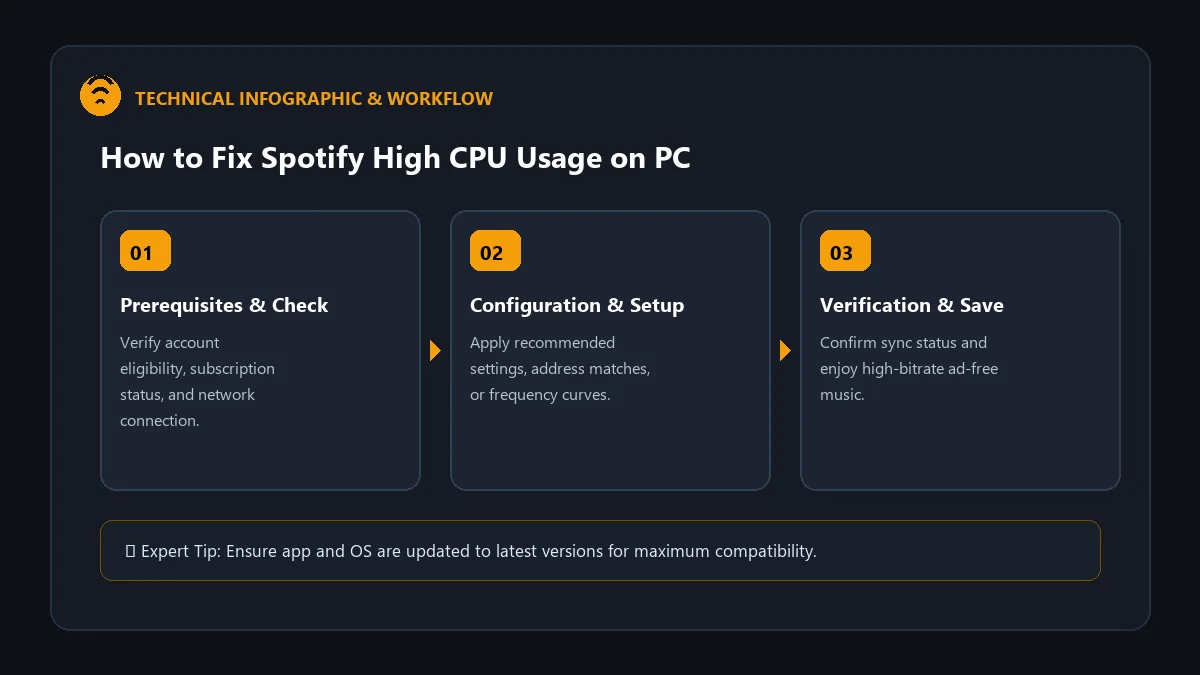
Spotify is designed to be a lightweight background music streaming client. However, many Windows and macOS users encounter situations where the Spotify process unexpectedly spikes to 30%, 50%, or even 100% CPU utilization. This causes laptop cooling fans to spin at maximum speed, drains battery life in under two hours, and introduces system lag during gaming or productivity workflows.
This technical guide explains how to fix spotify high cpu usage on pc, covering hardware acceleration conflicts, corrupted web-view processes, and background hardware polling.
Primary Drivers of Spotify CPU Spikes
- Hardware Acceleration Conflicts: Spotify’s Chromium Embedded Framework (CEF) uses GPU acceleration to render fluid animations. On certain graphics drivers, this triggers runaway render loops.
- Animated Video Canvas & Lyrics: Looping background video canvases and live synced lyrics consume continuous decoding cycles.
- Corrupted Local Storage / Logging Loops: When internal database indexes corrupt, the app enters an infinite read/write loop on your SSD.
Proven Step-by-Step Fixes for High CPU Usage
1. Disable Hardware Acceleration in Spotify Settings
Disabling GPU hardware acceleration is the most effective fix for CPU spikes across 85% of modern PCs:
- Open the Spotify desktop app.
- Click the Three Dots (…) in the top-left corner -> View.
- Uncheck Hardware Acceleration.
- Click OK when prompted to restart the application.
2. Disable Animated Canvas & Smooth Transitions
- Navigate to Settings in the desktop app.
- Scroll to Display options.
- Toggle Show Canvas to OFF.
- Toggle Show animated artwork to OFF.
3. Perform a Clean Reinstall (Deleting Ghost Roaming Data)
Standard Windows uninstalls leave corrupted cache directories behind. Follow these commands for a pristine fresh install:
- Uninstall Spotify via Windows Settings -> Installed Apps.
- Press
Win + R, type%AppData%\Spotify, and delete the folder. - Press
Win + R, type%LocalAppData%\Spotify, and delete the folder. - Download the latest standalone installer directly from spotify.com/download.
Performance Optimization Matrix
| Optimization Setting | Default State | Recommended Performance State |
|---|---|---|
| Hardware Acceleration | Enabled | Disabled (Eliminates CEF GPU spikes) |
| Animated Video Canvas | Enabled | Disabled (Saves 10-15% CPU load) |
| Autostart on Windows Boot | Enabled | Disabled (Improves system startup time) |
Frequently Asked Questions
Is the Microsoft Store version better for CPU performance?
The direct standalone installer from Spotify’s official website generally exhibits fewer sandbox permissions conflicts and better CPU management than the Microsoft Store package.
Does high streaming quality increase CPU usage significantly?
Audio decompression at 320 kbps uses negligible CPU (under 1%). Spikes are almost exclusively caused by UI rendering and video loops.
Can Discord Spotify status integration cause CPU lag?
Yes. Discord’s continuous rich presence polling can trigger background CPU wakeups. Disconnecting Spotify in Discord connections can alleviate micro-stutters in games.