
Why Local Files Fail to Sync on iOS Devices
Spotify Premium allows subscribers to import their personal audio collections (such as unreleased demos, remix tracks, and rare live recordings) from desktop computers to their iOS devices. However, many users face a frustrating issue where imported tracks appear greyed out, refuse to download, or fail to show up altogether in the iOS app library.
In this guide, we provide a complete technical walkthrough on how to fix spotify local files not showing on iphone, diagnosing Apple local network privacy barriers, Windows Firewall blocks, and Spotify audio format incompatibilities.
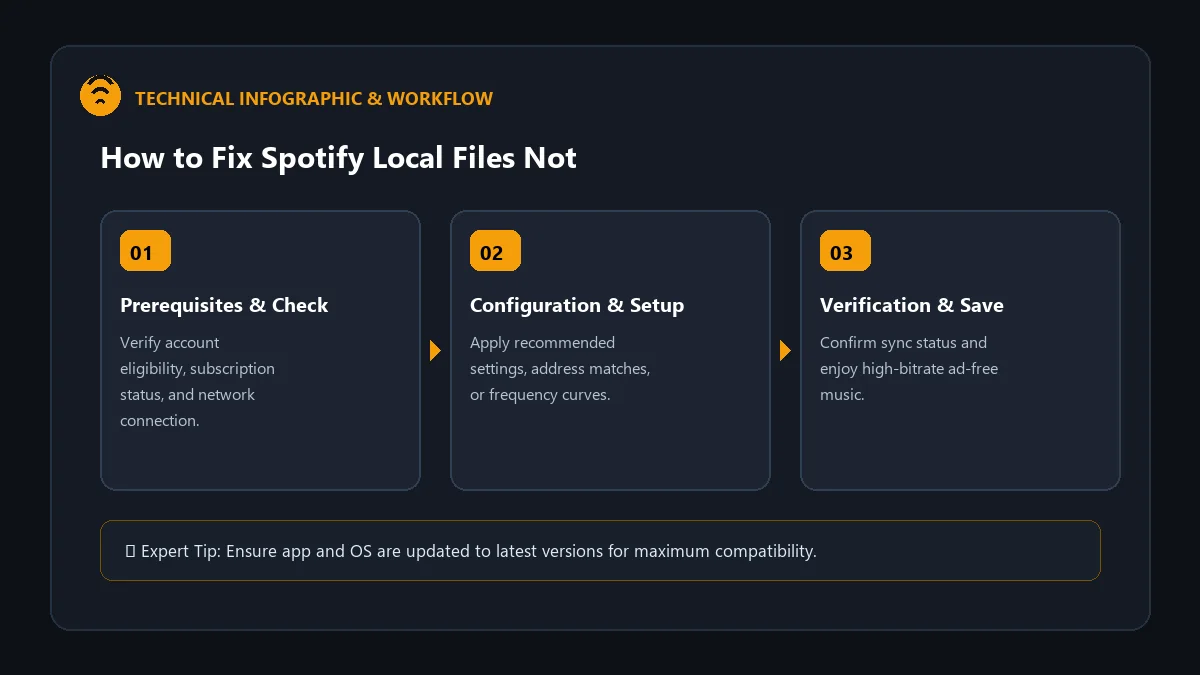
Essential Sync Prerequisites Checklist
Before executing technical troubleshooting steps, ensure your hardware satisfies these baseline conditions:
- Active Spotify Premium Subscription: Local file synchronization across devices requires an active Premium tier.
- Same Local Wi-Fi Network: Both your computer (Mac or Windows) and your iPhone must be connected to the exact same Wi-Fi SSID (not a 2.4GHz vs 5GHz split network).
- Compatible File Format: Spotify supports
.mp3,.m4a,.mp4(audio only), and.wav. Formats like FLAC or ALAC without compatible containers will not sync.
Step-by-Step Fixes for iPhone Local File Sync
1. Enable Local Network Permissions in iOS Settings
Starting in iOS 14 and continuing in modern iOS versions, Apple blocks apps from communicating with local network devices by default unless explicit permission is granted:
- Open the Settings app on your iPhone.
- Scroll down and tap on Spotify.
- Ensure the toggle next to Local Network is switched ON (Green).
- Force close and reopen the Spotify app.
2. Enable ‘Show Local Files’ in Spotify iOS App
- Open Spotify on your iPhone and tap your Profile Picture in the top-left corner.
- Select Settings and privacy -> Local Files.
- Toggle Show audio files from this device to ON.
3. Create a Dedicated Sync Playlist on Desktop
Rather than relying on general library sync, use Spotify’s proven playlist transfer method:
- On your desktop Spotify app, create a new playlist named ‘Local Sync’.
- Navigate to your Local Files folder on desktop and drag the desired audio tracks into this playlist.
- Open Spotify on your iPhone, locate the ‘Local Sync’ playlist, and tap the Download arrow button.
- Keep both Spotify apps open and active on the screen until the green download icons appear beside each track.
Firewall and Router Troubleshooting Matrix
| Potential Roadblock | Diagnostic Check | Resolution Action |
|---|---|---|
| Windows Defender Firewall | Inbound ports blocked | Allow Spotify.exe through Private Network Firewall |
| Router AP Isolation | Devices cannot communicate on LAN | Disable ‘Access Point Isolation’ in router admin panel |
| Active VPN on Desktop or Phone | IP tunnel breaks LAN discovery | Disconnect VPN on both devices during sync |
Frequently Asked Questions
Can I sync local files on Spotify Free?
You can play local files stored physically on your computer using the desktop app, but syncing them over Wi-Fi to your iPhone requires a Spotify Premium subscription.
Why are my synced local files greyed out on iPhone?
Greyed-out songs indicate the phone recognizes the track metadata but could not complete the file transfer over the local network. Re-connecting to the same Wi-Fi and re-downloading will fix this.
Do local files count towards my 10,000 offline song limit?
Yes. Any imported local audio downloaded to your iPhone counts toward your 10,000 offline song quota per device.