

Setting Up Your Spotify Family Plan with New Members
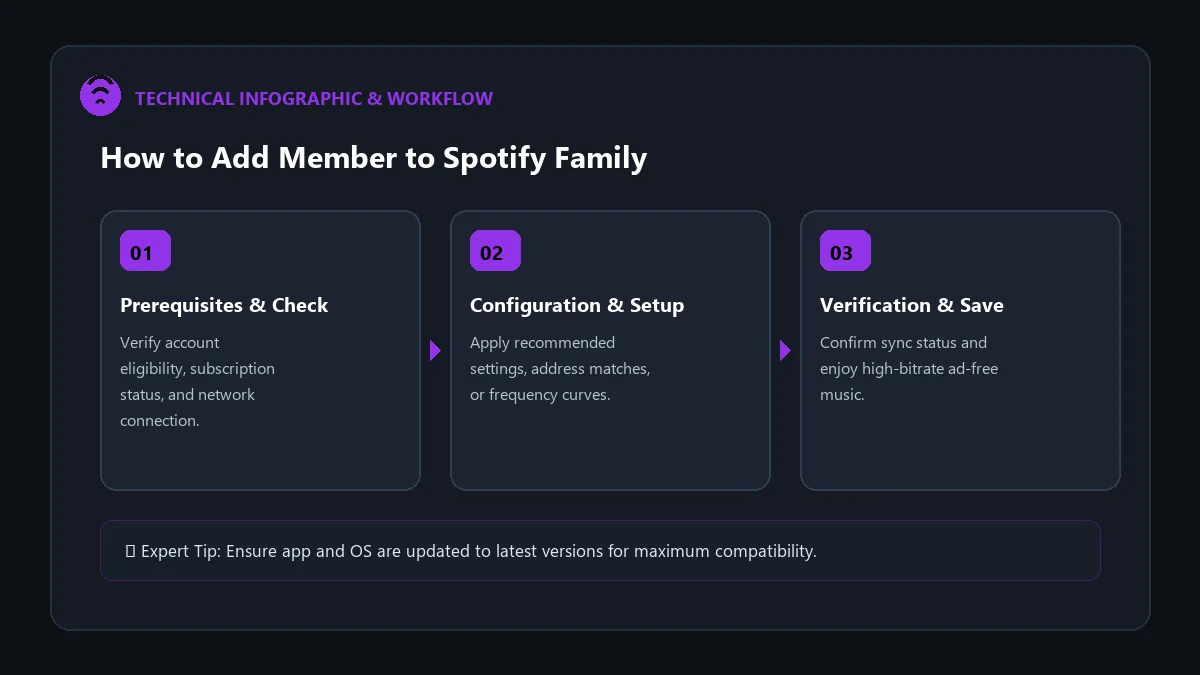
Upgrading to Spotify Premium Family ($19.99/mo) gives your household up to six independent premium accounts under a single subscription. However, adding family members correctly is essential to prevent failed invitations or address matching issues.
This comprehensive guide details how to add member to spotify family plan step by step, covering invitation link generation, address synchronization, and account onboarding.
Step 1: Generate the Invitation (Plan Manager)
Only the primary account owner (Plan Manager) can invite new members. Here is how to create the invitation:
- Open your web browser and log in at spotify.com/account.
- Scroll to Manage your family plan and click on it.
- Find an empty member slot (indicated by a plus icon or ‘Add Member’) and click Invite Member.
- Choose your preferred invitation method:
- Copy Link: Generates a direct URL that you can send via text, WhatsApp, or Messenger.
- Send Email: Sends an official automated invitation directly to their inbox.
Step 2: Accepting the Invitation (New Member)
The invited family member must complete the following steps to link their account:
- Click the invitation link received via message or email.
- Sign in with their personal Spotify account (or click ‘Sign Up’ if they do not yet have one).
- Click Accept Invite.
- Enter the Household Address: Type the exact physical address of the Plan Manager. The address must match character-for-character with the manager’s profile.
- Click Confirm Address. Their account will immediately upgrade to Spotify Premium!
Summary of Family Plan Capacities
| Plan Slot | Role | Privileges |
|---|---|---|
| Slot 1 (Owner) | Plan Manager | Controls billing, invites/removes members, sets parental filters |
| Slots 2 through 6 | Family Members | Independent premium streaming, private playlists, offline storage |
Troubleshooting Common Invitation Errors
1. ‘This invite link is invalid or expired’
Spotify invitation links expire after 7 days. If the link expires, the Plan Manager must navigate to the Family dashboard, cancel the pending invite, and generate a fresh link.
2. ‘The address you entered does not match the plan manager’
Ensure the invited member avoids typing abbreviations (e.g. use ‘Avenue’ instead of ‘Ave’ if the manager’s account shows the full word). Copying the exact string from the manager’s dashboard resolves 99% of matching errors.
3. ‘You are already in a plan’
Spotify users can only belong to one shared plan at a time, with a 12-month cooldown between joining different family groups. If the user previously belonged to another plan, they may need support assistance.
Frequently Asked Questions
Do new members need to enter credit card details?
No. Invited family members never enter payment details. The Plan Manager’s card covers the entire household subscription.
Can I add a member who already has an active Individual subscription?
Yes. Once they accept the family invite, their previous Individual billing will automatically cancel, and their saved library will carry over seamlessly.
How many times can I replace members on a Family plan?
You can replace members as needed, but individual accounts are restricted from switching between different family plans more than once every 12 months.