

Why Address Verification Matters on Spotify Family
Spotify Premium Family allows up to six family members to enjoy individual ad-free accounts for $19.99 per month. However, Spotify’s Terms of Service mandate that all members must reside at the same physical address. When moving to a new apartment or house, updating the registered home address is critical to prevent sub-accounts from failing location re-verification checks.
This guide explains how to change home address on spotify family plan correctly, addressing both the Plan Manager’s master settings and the required re-confirmation for all invited family members.
Important Rules Before Changing Your Address
Crucial Rule: Only the Plan Manager (the account owner who pays the monthly subscription) can alter the master home address. Sub-account members cannot edit the address independently; they must confirm the new address once the manager updates it.
Step-by-Step: Updating the Family Home Address (Plan Manager)
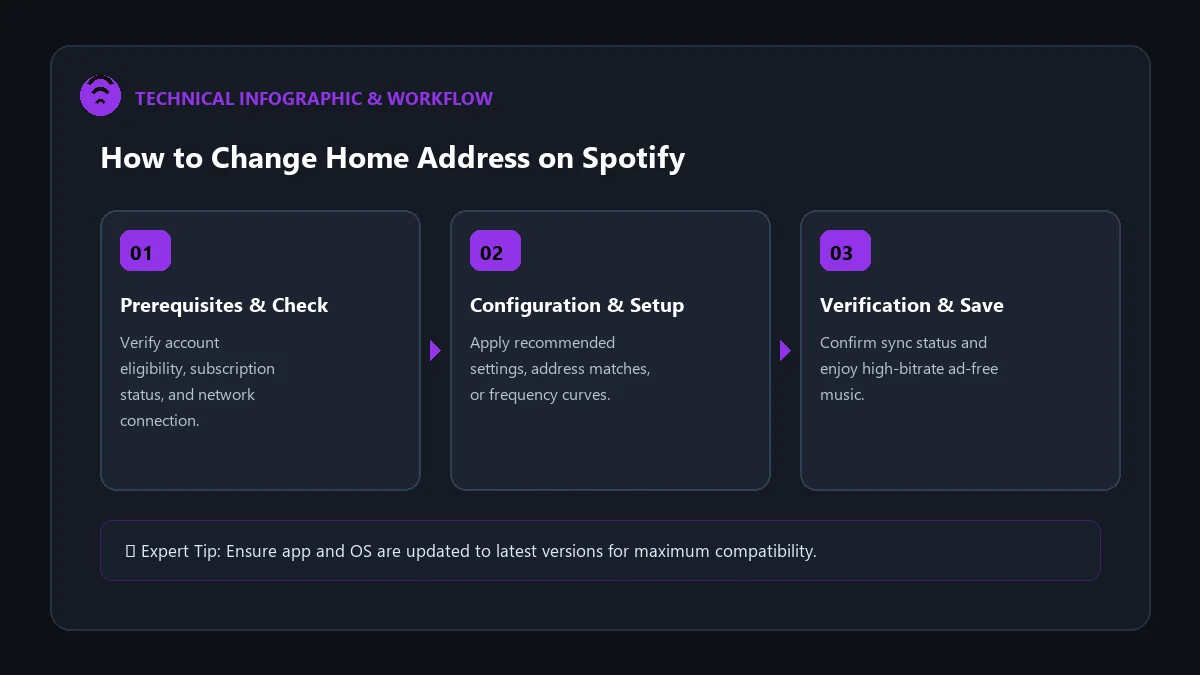
- Open Your Browser: Visit spotify.com/account and log in with the Plan Manager credentials.
- Navigate to Family Management: In the left sidebar or overview menu, click on Manage your family plan.
- Access Address Settings: Locate the Home Address section and click Change address or Edit.
- Enter New Physical Address: Begin typing your new street address. Select the exact standardized address from Google Maps auto-complete to ensure geographic accuracy.
- Confirm & Save: Click Save Address. Spotify will now update the household location coordinate database.
What Family Members Must Do Next
Once the Plan Manager updates the home address, Spotify sends an automated notification or presents an in-app prompt to each sub-account:
| Member Step | Action Required | Verification Window |
|---|---|---|
| 1. Open Verification Email | Click ‘Confirm Your Address’ link sent by Spotify | Within 7 days of manager update |
| 2. Type Exact Address | Enter the exact new address registered by the manager | Immediate verification |
| 3. Enable GPS Location (If prompted) | Allow one-time location check while on home Wi-Fi network | Instant match |
Troubleshooting Address Verification Failures
1. ‘We couldn’t confirm your address’
This error almost always occurs due to typographical variations (e.g., typing ‘Street’ instead of ‘St’, or omitting apartment numbers). The invited member must copy and paste the exact string shown on the Plan Manager’s account page.
2. ‘You can only switch family plans once every 12 months’
If a member is accidentally removed during an address update, Spotify’s anti-abuse filter may temporarily prevent them from rejoining. If this occurs, contact Spotify Customer Support via live chat to request a manual family link reset.
Frequently Asked Questions
How often can the Plan Manager change the home address?
While there is no strict numeric cap, updating your address multiple times within a few months can trigger fraud prevention flags requiring manual verification.
Will members lose their playlists if an address check fails?
No. If a member is temporarily removed due to an unverified address, their playlists, liked songs, and profile data remain completely safe on their account.
Can family members verify while traveling?
It is best to verify address updates when connected to the home Wi-Fi network to avoid IP geolocation mismatches.